
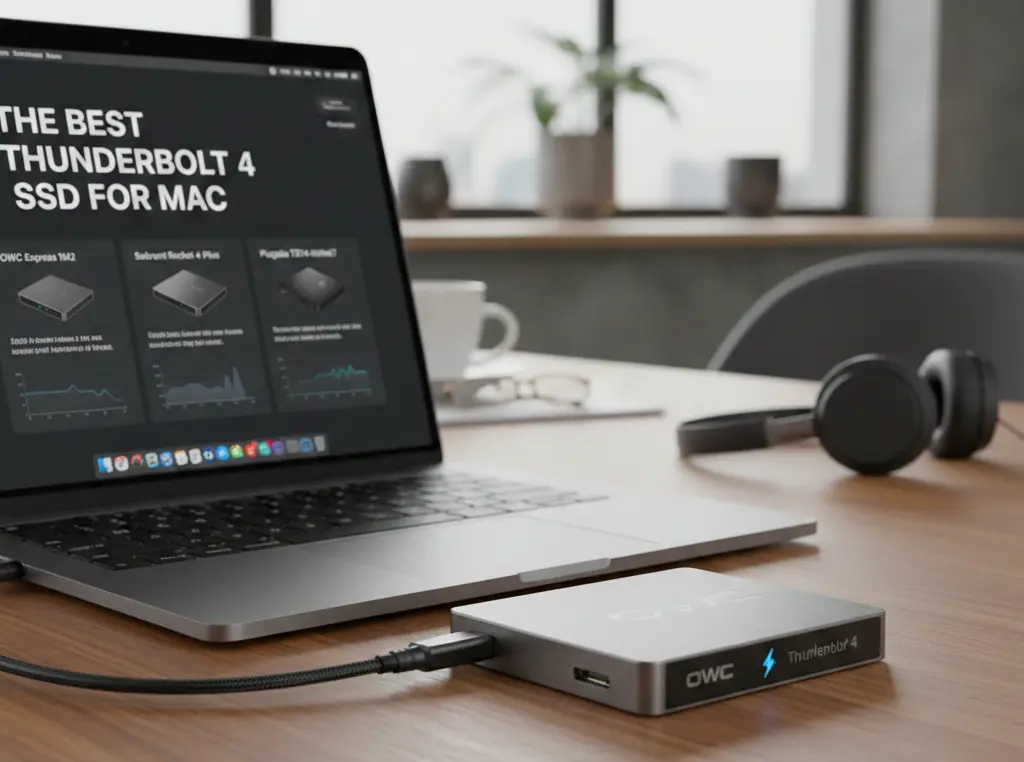
If you own a modern Mac—especially one equipped with an Apple Silicon M-series chip—you know that the biggest bottleneck to a pro workflow is often data transfer speed. That’s where the best Thunderbolt 4 SSD for Mac comes in.
An external Solid State Drive (SSD) utilizing the Thunderbolt 4 protocol delivers a massive 40Gb/s (Gigabits per second) of bandwidth, translating into real-world speeds often exceeding 2,800 MB/s (Megabytes per second). This blistering speed is essential for everything from running demanding applications directly off the drive to handling multi-terabyte 8K video projects on the go. This guide will walk you through the top-tier, certified Thunderbolt 4 drives that will truly maximize your Mac’s performance and redefine your portable workflow.
Why it Matters to You
For creative professionals, gamers, and power users, the difference between a standard USB-C drive and a true Thunderbolt 4 SSD is the difference between waiting and working.
- Video Editors: Edit multi-stream 4K and 8K footage directly from the drive without dropped frames. This drive acts like a blazingly fast extension of your Mac’s internal storage.
- Photographers: Ingest thousands of RAW photos instantly and run complex cataloguing and editing software with zero lag.
- Power Users: Run a bootable copy of macOS for seamless system migration or use the drive for lightning-fast Time Machine backups that take minutes, not hours.
- Gamers (on Mac): Store large game libraries and experience faster load times than many older internal SSDs.
Feature-by-Feature Comparison Table
The market for high-speed external storage can be confusing, mixing Thunderbolt, USB4, and various USB generations. This table cuts through the noise to compare the top Thunderbolt-enabled drives/enclosures ideal for Mac users.
| Product | Max Theoretical Speed (Gb/s) | Max Real-World Speed (MB/s) | Durability Rating | Best For | Compatibility |
| SanDisk Professional PRO-G40 | TB3 / USB 3.2 Gen 2 | ~2,700 Read / ~1,900 Write | IP68 | On-Location Work | Universal (TB3/TB4/USB) |
| LaCie Rugged SSD Pro | TB3 / USB-C | ~2,800 Read / ~2,700 Write | IP67 | Extreme Conditions | TB3/TB4 (Optimized for Mac) |
| OWC Express 1M2 | USB4 / TB4 | ~3,800+ (enclosure only) | Enclosure dependent | DIY Custom Speed | TB4 / USB4 / USB-C |
| Samsung Portable SSD X5 | TB3 | ~2,800 Read / ~2,300 Write | Shock Resistant | Pure Speed (Older Gen) | TB3/TB4 Ports |
Note: The max real-world speeds are based on common M-series Mac benchmarks for 40Gb/s drives, which typically max out around 2800-3200 MB/s due to overhead.
What to Look for When Choosing the Thunderbolt 4 SSD
Choosing the right Thunderbolt 4 SSD requires looking beyond the “40Gb/s” label.
- True Thunderbolt/USB4 Certification: Ensure the drive or enclosure is specifically certified for Thunderbolt 4 or USB4. This guarantees the maximum 40Gb/s speed and backward compatibility.
- Capacity and Cost: Determine your need. 1TB is a good starting point, but 2TB or 4TB is better for 4K/8K video libraries. Price per GB often drops significantly at higher capacities.
- Durability: Portable drives often lead a rough life. Look for IP-ratings (e.g., IP55 or IP67) for resistance to dust, water, and drop protection for peace of mind.
- Cooling/Thermals: High speeds generate heat. Drives with solid aluminum casings or finned enclosures (like the OWC Express 1M2) manage heat better, preventing “thermal throttling” which slows performance during long transfers.
Quick Benchmark Highlights
While all 40Gb/s drives are fast, real-world benchmarks reveal crucial differences, especially for sustained professional workflows.
| Highlight | Description | Implication for Mac Users |
| Sustained Write Speed | How fast the drive writes large, continuous files (critical for video). | Top Thunderbolt 4 drives consistently hit 2,500 MB/s+, significantly faster than 10Gb/s USB-C drives (~900 MB/s). |
| Random I/O Performance | Measures how fast the drive handles many small file operations (critical for app loading/OS boot). | Superior Random I/O is what makes working off a TB4 SSD feel almost identical to working off your internal Mac drive. |
| Thermal Throttling | The drop in speed after a sustained, heavy workload (e.g., copying a 200GB file). | Better-designed enclosures (e.g., LaCie, OWC) show minimal throttling, maintaining high speeds for longer. |
In-Depth Reviews the Best Thunderbolt 4 SSD for Mac
1. SanDisk Professional PRO-G40 SSD

The PRO-G40 sets the standard for rugged, dual-protocol performance. It’s built for field use with an IP68 rating, meaning it’s almost completely dust-tight and submersible up to 1.5 meters. Critically, it features dual Thunderbolt 3 (40Gb/s) and USB 3.2 Gen 2 (10Gb/s) interfaces, ensuring it gets the maximum possible speed on any Mac or PC, seamlessly. It’s the ultimate combination of speed and durability.
2. OWC Express 1M2 (Enclosure + Custom NVMe)

For the uncompromising speed demon, building your own drive using the OWC Express 1M2 enclosure and a top-tier M.2 NVMe SSD (like a WD Black SN850X or Sabrent Rocket 4 Plus) is the fastest option. This DIY approach often yields the highest benchmark speeds (up to 3,800 MB/s), pushing the limits of the 40Gb/s interface. It supports both Thunderbolt 4 and USB4 and offers superb thermal management.
3. LaCie Rugged SSD Pro
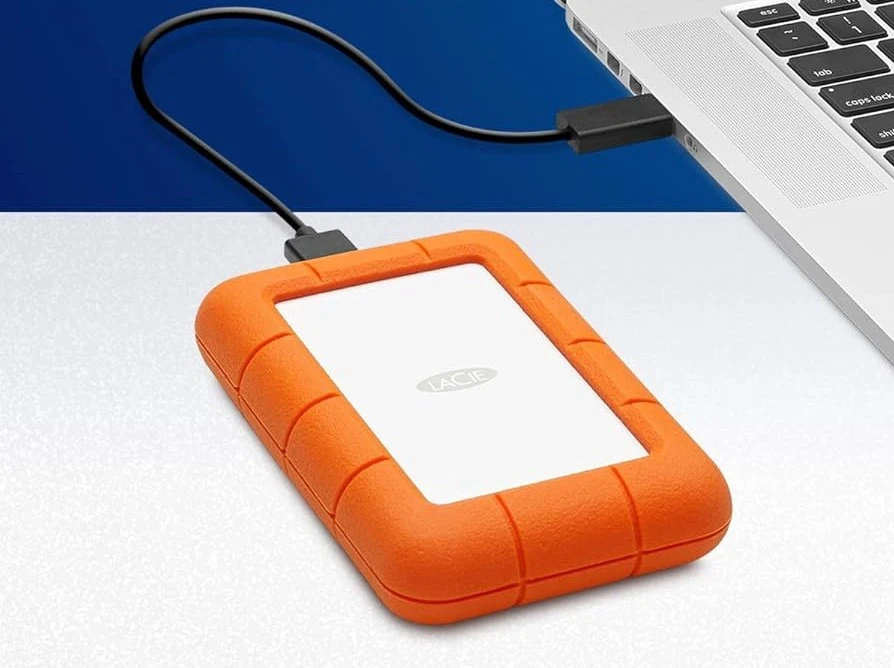
Continuing LaCie’s reputation for bombproof storage, the Rugged SSD Pro (which uses the Thunderbolt 3 standard but is fully TB4 compatible) delivers professional-grade speeds with a distinctive orange bumper. It is pre-formatted for Mac and includes LaCie’s Toolkit software, offering exceptional reliability for professionals who need fast, portable storage in punishing environments. It’s an easy plug-and-play choice optimized specifically for the macOS ecosystem.
Buying Guide: What to Look for
| Factor | Description | Why it Matters for Mac Users |
| Native Mac Formatting | Some drives are pre-formatted as exFAT (universal) or APFS/HFS+ (Mac-specific). | APFS is ideal for bootable backups and external apps. exFAT is best if you use the drive with a PC too. |
| Port Power Draw | Thunderbolt drives are bus-powered (no separate cable). | Ensure the drive is efficient so it doesn’t overly drain your MacBook battery during use. |
| Controller Chipset | Look for chipsets from ASMedia or Intel’s own solutions (JHL7440 or JHL8440) for guaranteed full 40Gb/s performance. | Cheaper drives may use less performant controllers that can limit sustained speeds. |
| Included Cable | A certified 40Gb/s cable is essential. | Some cheap cables are 10Gb/s limited, crippling your drive’s potential. Ensure a true Thunderbolt 4 cable is included. |
Pros & Cons of Thunderbolt 4 SSD for Mac
Investing in the best Thunderbolt 4 SSD for Mac is a premium commitment, but the performance payoff is immense.
| Pros of a Thunderbolt 4 SSD for Mac | Cons of a Thunderbolt 4 SSD for Mac |
| Maximized M-Series Performance (40Gb/s). | Higher Cost compared to 10Gb/s USB-C SSDs. |
| Ideal for Pro Workflows (e.g., live 8K editing). | Maximum Speed is TB4/USB4 Exclusive, older Macs/PCs will see reduced speeds. |
| Seamless Integration with macOS features like Time Machine. | Potential Heat Issues under prolonged, heavy load. |
| Superior Power Delivery and daisy-chaining capability. | Speed is Often Limited to ~3,200 MB/s, not the theoretical 5,000MB/s+ of the Mac’s internal drive. |
Best Pick Based on Your Use Case
- 🏆 Best All-Around Pro Pick: SanDisk Professional PRO-G40 SSD. It offers incredible ruggedness and true dual-protocol (TB/USB) support, making it the most versatile and durable high-speed drive.
- 🏎️ Fastest Speed Potential (DIY): OWC Express 1M2 Enclosure. Pair it with a high-end Gen 4 NVMe SSD for benchmarks that push the limits of the 40Gb/s connection.
- 🛠️ Most Reliable Plug-and-Play: LaCie Rugged SSD Pro. Pre-optimized for Mac, durable, and comes from a brand trusted by professionals for years.
Performance Use-Case Chart
| Task | Recommended Speed | Why |
|---|---|---|
| 4K video editing | 1,500–2,500 MB/s | Smooth timeline scrubbing |
| 6K–8K RAW | 2,800+ MB/s | Multi-stream playback |
| Time Machine backups | 800+ MB/s | Faster initial backup |
| Photo libraries (LR/PS) | 1,200+ MB/s | Quick previews |
Real-World Performance
In practical terms, a Thunderbolt 4 SSD translates to this:
| Task | Estimated Time (Internal Mac SSD) | Estimated Time (TB4 SSD) | Estimated Time (Standard 10Gb/s USB-C SSD) |
| Transferring 100GB File | ~35 seconds | ~45 seconds | ~1 minute 50 seconds |
| Booting macOS (from external drive) | ~10 seconds | ~15 seconds | ~30+ seconds |
| Loading Adobe Premiere Pro Project (20GB Cache) | ~8 seconds | ~10 seconds | ~25 seconds |
The near-parity with internal drive performance is the hallmark of a quality Thunderbolt 4 connection, proving it’s more than just a backup drive—it’s an extension of your Mac’s core system.
Mac vs Windows vs Other OS Compatibility
A key advantage of Thunderbolt 4 (and its core protocol, USB4) is its standardization.
- Mac (macOS): Full 40Gb/s speed guaranteed on M1, M2, M3, and later Macs. Thunderbolt 4 drives are the fastest possible external storage for these systems.
- Windows (PC): Requires a Windows PC with a certified Thunderbolt 4 port (typically on 11th Gen Intel or newer). Older PCs with limited Thunderbolt 3 may show reduced or inconsistent performance.
- Other OS (e.g., iPadOS, Linux): The drive will usually fall back to the USB 3.2 Gen 2 (10Gb/s) standard on systems that don’t support the full Thunderbolt protocol, still offering excellent performance.
Safety & Protection
Professional-grade SSDs often incorporate features to protect your valuable data:
- Hardware Encryption: Many top drives, like the SanDisk Professional line, offer 256-bit AES Hardware Encryption to secure your data without relying solely on macOS software encryption.
- Physical Protection: Look for an IP Rating (Ingress Protection) which rates resistance to dust and moisture. An IP67 rating, for instance, means the drive is highly protected against both.
- Data Recovery Services: Some premium brands, like LaCie, include multi-year data recovery services, adding a critical safety net for mission-critical projects.
Internal and External Performance
It’s crucial to understand the hierarchy of SSD performance on a Mac:
- Internal Mac SSD (e.g., M3 MacBook Pro): Typically offers 5,000 MB/s to 7,000 MB/s sequential speeds. This is the fastest, utilizing multiple high-speed PCIe lanes directly integrated into the M-series chip.
- External Thunderbolt 4 SSD: Limited by the 40Gb/s (approx 5,000 MB/s theoretical max) interface, real-world speeds typically hit 2,800 MB/s to 3,200 MB/s. While slower than internal storage, it’s still blazing fast and essential for expansion.
- External USB 3.2 Gen 2 SSD: Limited to 10Gb/s, with real-world speeds of 900 MB/s to 1,050 MB/s. Great for backups, but not for live editing high-res video.
The Thunderbolt 4 drive provides ~50% of your internal SSD’s speed at a fraction of the cost of a Mac internal storage upgrade, making it the best value for high-performance expansion.
Long-Term Reliability Tips
- Eject Properly: Always use the “Eject” command in macOS before disconnecting the drive to prevent file system corruption.
- Monitor Thermals: Avoid operating the drive in direct sunlight or confined, hot spaces, as excessive heat is the primary killer of SSD lifespan and performance.
- Use Quality Cables: Only use the certified Thunderbolt 4 cable that came with the drive or a guaranteed replacement. A poor cable is the easiest way to ruin performance and stability.
- Keep Firmware Updated: Check the manufacturer’s website (e.g., SanDisk, OWC) for drive firmware updates, which often fix bugs and improve performance stability.
Common Mistakes When Buying a Thunderbolt SSD for Mac
- Buying USB-C SSD thinking it’s Thunderbolt
- Using cheap non-certified cables
- Formatting incorrectly (exFAT vs APFS)
- Ignoring sustained write speeds
Buying Recommendations
| Budget Tier | Recommendation | Best For | Why Choose It |
| Ultimate Performance | OWC Express 1M2 + High-End NVMe | Max Speed Workflows (8K Video) | Highest sustained speeds, excellent thermal management. |
| Pro Portability/Rugged | SanDisk Professional PRO-G40 | Fieldwork, Travel, Universal Use | IP68 rating, Thunderbolt 3/USB-C dual-protocol. |
| Best Value TB4 | LaCie Rugged SSD Pro (2TB) | Mac-centric users who need speed + reliability. | Great balance of speed, durability, and Mac-centric branding/support. |
Who Should NOT Buy a Thunderbolt SSD?
- Casual users doing light file transfers
- Budget-focused buyers
- Console-only gaming storage
Final Verdict
The era of Thunderbolt 4 (and its close sibling, USB4) has made external storage finally fast enough to be a true, seamless extension of your internal Mac drive. For any professional Mac user working with large files—whether video, photo, or audio—a top-tier, certified Thunderbolt 4 SSD is the single best performance upgrade you can make. While all options offer phenomenal speed, the SanDisk Professional PRO-G40 takes the crown for its unmatched combination of ruggedness, universal compatibility, and raw performance.
FAQs
Q1: What is the real-world speed advantage of a Thunderbolt 4 SSD over a standard USB-C drive on a Mac?
A: A Thunderbolt 4 SSD hits real-world speeds of approximately 2,800 to 3,200 MB/s. A standard 10Gb/s USB-C drive only achieves about 900 to 1,050 MB/s. This means the TB4 drive is roughly 3x faster, which is critical for continuous, heavy file transfers like video editing.
Q2: Is Thunderbolt 4 faster than Thunderbolt 3 for SSDs?
A: For pure single-drive SSD speed, Thunderbolt 4 and Thunderbolt 3 both use a 40Gb/s link, so the maximum speed is virtually the same (capped around 3,200 MB/s). Thunderbolt 4 mainly offers standardized minimum bandwidth, better security (DMA protection), and support for multiple 4K displays.
Q3: Can I use a Thunderbolt 4 SSD to run a bootable copy of macOS?
A: Yes, absolutely. Thunderbolt 4 SSDs are fast enough to run macOS (including the latest Ventura/Sonoma) with performance almost indistinguishable from the internal drive, making them great for clean installs or recovery.
Q4: Do I need a special cable for a Thunderbolt 4 SSD?
A: Yes. You need a cable rated for 40Gb/s, which should be a certified Thunderbolt 4 (or high-end USB4) cable. Using a generic USB-C cable may limit your speed to 10Gb/s.
Q5: What does an “IP rating” (e.g., IP67) mean for an external SSD?
A: The Ingress Protection (IP) rating indicates resistance to dust and water. IP67 means the drive is dust-tight (6) and can withstand submersion in water up to 1 meter for 30 minutes (7), ideal for on-location creative work.
Q6: I have an older Mac with only Thunderbolt 3 ports. Will a Thunderbolt 4 SSD work?
A: Yes. Thunderbolt 4 is fully backward compatible with Thunderbolt 3 ports. The drive will operate at its full 40Gb/s speed potential.
Q7: Should I buy a pre-built Thunderbolt 4 SSD or a DIY enclosure kit?
A: Pre-built drives offer guaranteed compatibility, warranty, and usually better physical durability. DIY enclosures (like the OWC Express 1M2) offer the flexibility to choose a cutting-edge NVMe SSD for potentially higher peak speeds, but require assembly.
Short Conclusion
The marriage of Apple Silicon Macs and Thunderbolt 4 is a game-changer for external storage. By selecting a high-performance Thunderbolt 4 SSD, you are not just adding space; you are expanding your Mac’s processing capability to truly portable, professional levels. Choose speed, choose stability, and unlock your most demanding creative workflows today.
If you have any questions about this post, “The Best Thunderbolt 4 SSD for Mac: Maximize Your Speed,” please let us know by your valuable comment.


